Nodd Manual
How to use the app, from first setup to deleting your account. For the API and CLI, see the developer docs.
Sign-in and first setup
Nodd runs on iPhone with iOS 17.0 or later and uses Sign in with Apple. The first run goes in this order.
- Sign in with your Apple ID
- Allow notifications. You can choose not now, but then you receive messages only when you open the app
- Choose how to start. If you were invited, choose Accept an invite and scan the QR code, or open the invite link. You then skip creating a workspace and the remaining steps. To start on your own, tap Create a new workspace
- Create a place to receive notifications. Enter a workspace name and a first channel name, then tap Create and issue key. You can change the workspace name later in Settings
- Save the send key. It appears only on this screen. Copy or share it, then tap Saved. Test it
- Test. Answer the test approval. The screen also shows a command you can run from a computer
After the test, the app confirms that notifications and responses are connected. If your account already has channels, for example after reinstalling, the app skips these steps.
The main screens
There are three tabs at the bottom.
| Action | What needs you. The tab badge counts only items you must act on and is hidden at zero |
|---|---|
| Channels | Notifications by channel. Create and search channels here |
| Settings | Workspace, plan, receiving, and account settings |
The Action tab has these groups.
| Awaiting response | Approvals and choices with buttons |
|---|---|
| Unhandled | Items such as alerts that nobody has taken |
| In progress with team | Items someone else has taken. They leave your count |
| Awaiting result | Answered items waiting for the sender to report a result |
| View only | Activity in channels where you are a Viewer. It is not in your count |
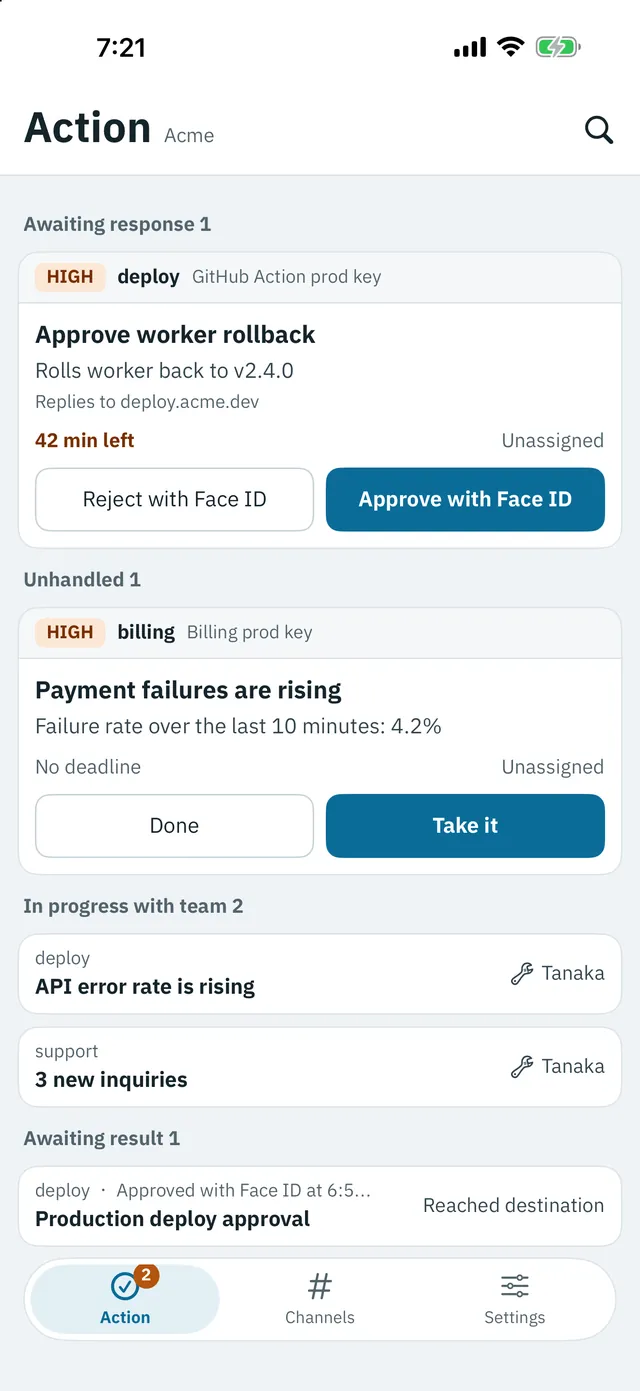
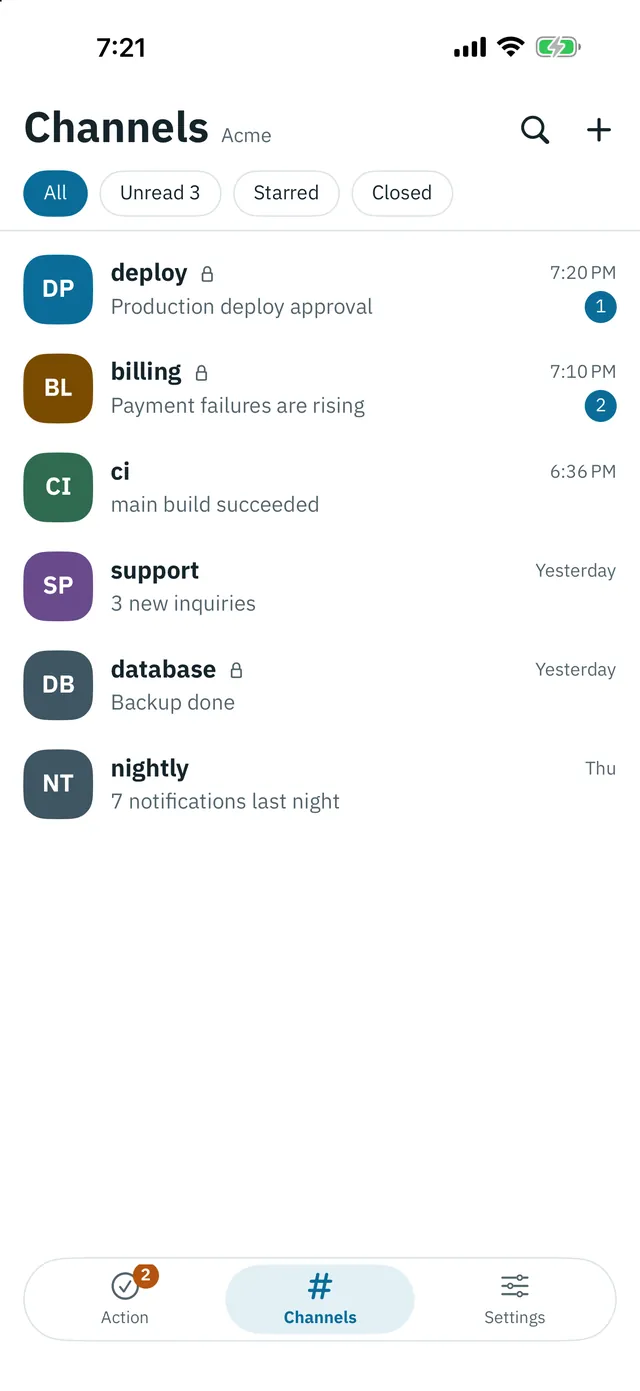
Touch and hold a notification for reactions (Ack, Watching, Take it, Done, plus Like, Bug, Investigating, and more), reminders, pinning, muting that notification for 1 hour or 1 day, receipt status, and more. Viewers can use Ack and Watching. Take it and Done need Responder or above.
Channels
A channel is where notifications arrive. Use one for each purpose. Send keys and inbound URLs belong to one channel.
Choose integrations under Add integration in the channel details. Just paste the URL lists Grafana, Alertmanager, Datadog, Sentry, PagerDuty, Slack-format Webhook, and Generic webhook. Command lists CLI and REST API. AI agent lists Claude Code and MCP. See Inbound URLs for the steps.
- Create. Choose Create Channel from the top right of the Channels tab. Owners and Admins can create channels, and the creator becomes a Manager
- Visibility. New channels are Closed, so only invited people can see them. On Team plans a channel can be Open. Only the Owner can change Closed to Open, with Face ID. Members who join can then read past history
- Joining an Open channel. Use Find Channels. You join as a Viewer with notifications set to high only
- Closing. Use Close down Channel in the channel details. Receiving stops and its keys stop working. This cannot be undone
The Free plan allows 10 channels and no Open channels.
Send keys and read keys
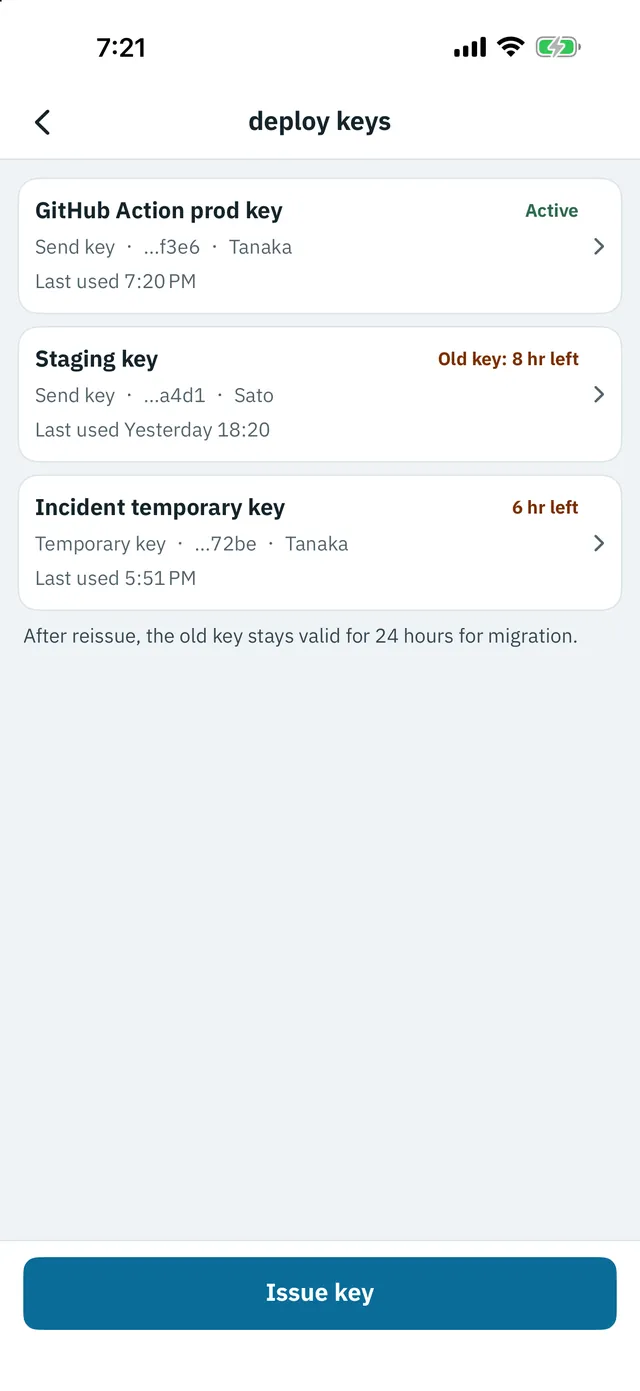
Manage keys under Send key and Read key in the channel details. Managers, Owners, and Admins can do this. A key works only for its channel.
| Send, no expiry | Sends notifications. Keep it in CI or on a server |
|---|---|
| Send, temporary | A send key that expires after 24 hours, 7 days, or at a date you choose |
| Read | Reads response events and cannot send. For services that cannot receive callbacks |
- Issue. Tap Issue key, choose a name and type, and confirm with Face ID. The name appears as the sender on cards and in the delivery log
- The key value is shown only once. You cannot view it later
- Reissue creates a new key. The old key keeps working for 24 hours for migration. Only a valid key can be reissued
- Revoke. Sending with that key stops immediately. This cannot be undone
- Rename. The key value does not change
- Usage. The list shows when each key was last used and its count this month
To put a key on a computer, run nodd login and scan its QR code under Settings > Log in to CLI. You can choose channels where you are a Manager. Allow it only if it is the computer you are using.
Responding and Face ID
Opening an approval or choice shows the confirmation screen. The channel, sender, and reply destination sit in a fixed area, and what the sender wrote is below it. Notifications created by an AI agent are marked in that area.
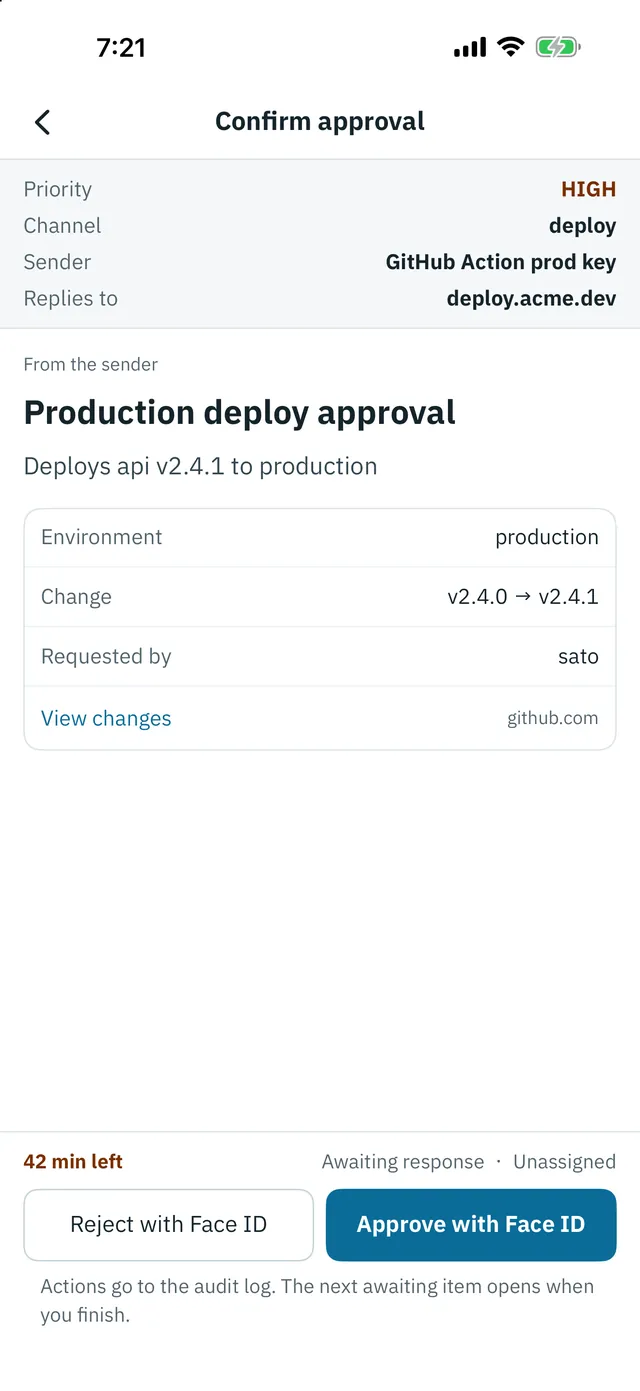
- Responses use Face ID and are signed by a key on your device. Face ID data never leaves the device
- Approvals are never confirmed from a notification or widget. Touch and hold the notification and open the approval card in the app
- The first response wins. If another member or another of your devices answers first, the app says it was already answered
- Viewers cannot respond. Approving and taking items need Responder or above
- Offline responses send automatically when you are back online. They count if you pressed before the deadline and they arrive within 10 minutes after it
- Expired approvals cannot be answered. No response never counts as approval
Rejection reasons
When you tap Reject, a box for the reason appears. It is optional and takes up to 200 characters.
- The reason is stored on the server with the response and returned to the sender as written
- The CLI prints it to standard error as
Note:. The GitHub Action returns it as thenoteoutput, MCP asnote, and the Claude Code hook as the rejection reason - It also goes to a registered callback URL. Unlike message bodies it is not encrypted to devices, so do not write secrets in it
Entering text and passwords
When the sender asks for it, the response screen shows a field. Both kinds need Nodd 1.1 or later.
- Text takes up to 200 characters. Like a rejection reason, it is stored on the server and returned to the sender as written, so do not write secrets in it
- Passwords are masked as you type and sent with Send with Face ID. The value is encrypted to the sender's key, so our servers cannot read it. It is not kept on your device either, and your history shows only "the value you entered"
- When asked for a password, check the send key name and channel on the screen. If you do not recognize them, reject the request
Reporting and blocking
Report or block notifications and people that are inappropriate or abusive. This needs Nodd 1.1 or later.
- Notifications: touch and hold, then choose Report or Block this sender. When reporting, choose a reason and add a note if you like. You can also choose whether to attach the notification's content. Attached content reaches our staff in readable form
- Members: report or block them the same way from the member list
- Notifications from a blocked send key no longer reach this device, and its past notifications are hidden. For a blocked member, notifications from send keys they created and their reactions are hidden
- See and undo blocks in Settings > Blocked. The other person is not told
- We review reports within 24 hours, and revoke send keys or suspend accounts that violate the terms
Receipt status and notifying again
Touch and hold a notification and open Receipt status to see each member's state. Sender details opens the delivery log.
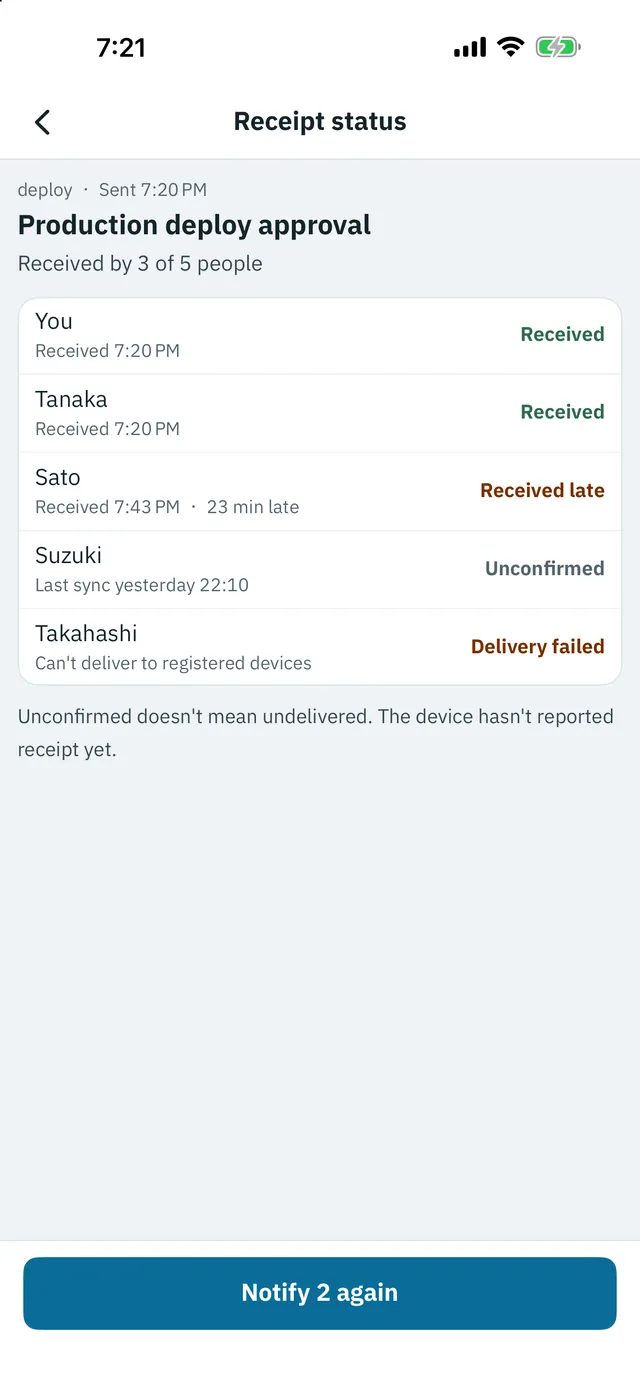
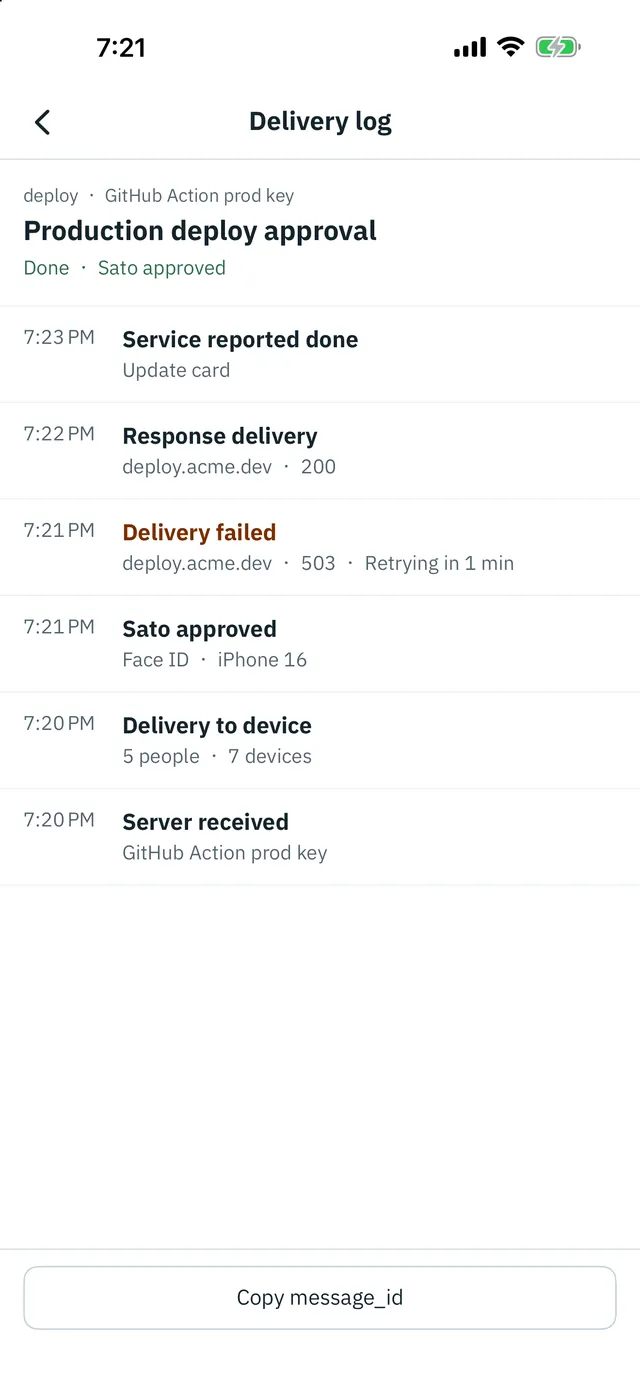
Unconfirmed does not mean undelivered. It means the device has not reported receipt yet. If anyone is unconfirmed, a Responder or above can notify them again.
Team invites and roles
A Team plan belongs to a workspace owned by the person who pays. Everyone else joins by invite and does not buy a plan.
- An Owner or Admin taps + in Settings > Members. On the Free plan, start Team from Settings > Invite team
- A QR code appears. Have the other person scan it on their iPhone, or use Share invite link
- They review the invite and tap Join. New users can scan it from Accept an invite after signing in. Existing users can use the scanner at Settings > Log in to CLI
- A Manager sets their channel permissions after they join
An invite works once and expires after 7 days. Issue a new one if it expires. When the member limit is reached, nobody can be invited or join.
Workspace roles
| Owner | There is one Owner, who can buy the plan, change member roles, and close the workspace. Use Transfer Owner to hand this to another member. You then become an Admin, and the new Owner must buy the plan again |
|---|---|
| Admin | Can invite, create channels, and remove Members. Can manage settings of Closed channels they have not joined, but cannot read message bodies |
| Member | Uses the channels they belong to |
Channel roles
| Manager | Manages keys, callbacks, and members |
|---|---|
| Responder | Views and uses buttons |
| Viewer | View only |
Several workspaces
- One person can belong to several workspaces. With two or more, Settings shows an item for switching between them
- Leaving or closing. To leave a workspace you joined, use Settings > Leave this workspace. To close a workspace only you use, choose Close this workspace. If others are in it, the Owner transfers ownership first
- Each person can own one free workspace. Creating more needs Team. Joining a workspace you are invited to is free
- A free workspace cannot be created again on the same device with a different Apple ID
- Your device limit follows the largest plan among your workspaces
Approval by two or more people
On Team plans a single approval can require 2 or 3 people. The sender sets the number.
nodd ask "Deploy to production?" --approvals 2 --escalate-after 600- The card shows progress such as 1 of 2 approved, with the names of those who approved
- After you approve, the app says how many more approvals are needed. When the count is met, the result goes back to the sender
- The same person counts once and cannot approve twice
- One rejection settles it as rejected
Escalation
On Team plans, other people can be told when nobody responds for a set time. The sender sets it. In the command above, --escalate-after 600 means 10 minutes.
- By default it goes to the channel's Managers and Responders. The sender can name people or roles instead
- It reaches people who have notifications off and people in quiet hours
- The response deadline does not change. The escalation time must be before the deadline
- Nothing happens if the notification was already answered
Heartbeat monitoring
This tells you when a scheduled job such as a backup stops. Run this at the end of the job.
nodd heartbeat nightly.backup --every 86400- If the next report does not arrive, the channel gets a high priority notification
- When reports resume, you get a notification
- Heartbeat monitoring in the channel details shows each name, the last report, and whether it is OK or Missing
- Tap a row to stop monitoring it. Managers, Owners, and Admins can do this
- Each channel can have 20. Reports do not count toward your monthly limit
Quiet hours
Set Quiet hours in Settings > Notifications. The setting is per device. A range can cross midnight, such as 22:00 to 7:00.
- Notifications stay silent during this time. They still reach your inbox and appear when you open the app
- High priority messages and escalations still come through
Notification levels
The sender chooses the priority.
| low | Silent (iOS Passive). Can also go into an hourly summary |
|---|---|
| normal | A regular notification (iOS Active) |
| high | Important (iOS Time Sensitive). The card shows HIGH |
You choose what makes a sound for each channel, under Notifications by Channel in Settings > Notifications or Notifications for this Channel in the channel details.
| All | Every notification alerts you |
|---|---|
| high only | Only high alerts you. This is the setting right after you join an Open channel |
| Off | Nothing alerts you, including high. Messages sync when you open the app. Escalations still reach you |
A Focus mode or iPhone notification settings can also silence notifications.
History export and import (changing phones)
Message history is not kept on the server. It exists only on each device, so you move it with a file.
- Open the app on the old iPhone so it receives anything pending
- In Settings > Privacy and storage, tap Export history and save
nodd-history.json - Install the app on the new iPhone and sign in with the same Apple ID
- Move the file over and choose it with Import history on the same screen. Items already there are not duplicated
- If you lose the device or delete the app without exporting, the history cannot be read and we cannot restore it
- Signing out stops notifications to this device and deletes the history saved on it. Export first
- The Free plan allows one device. Registering a new one removes the old one, which stops receiving notifications. Team allows 5 per member, and the oldest is removed when you go over
- Bodies delivered to the old device but not yet to the new one cannot be read there
Audit log and CSV
On Team plans, Owners and Admins can see who did what and when in Settings > Audit log. Message bodies are not included. Records are kept for 400 days.
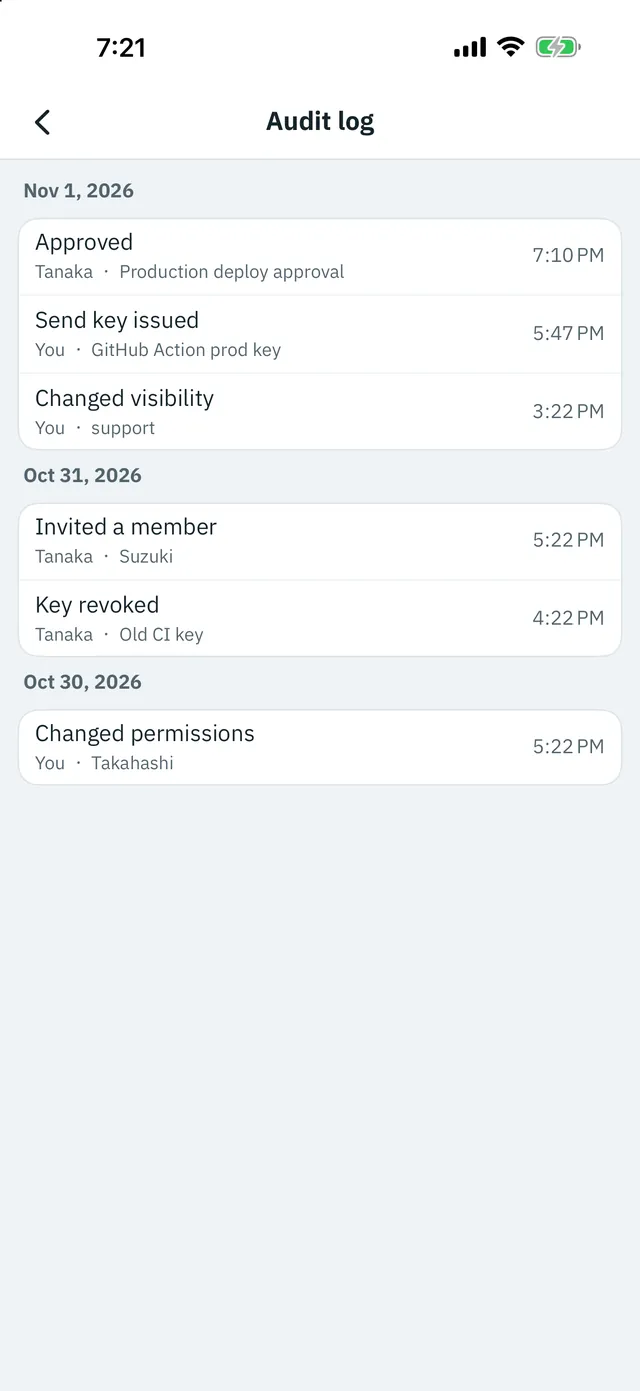
- Recorded actions include issuing, revoking, and reissuing keys, adding integrations, registering and removing reply destinations, changing channel permissions or visibility, changing or removing members, and transferring the Owner
- Export as CSV at the bottom of the screen creates
nodd-audit.csvfor the share sheet. Its columns are time, action, actor, and target - One export holds about 10,000 records at most
Plans and limits
| Item | Free / Team 5 / Team 10 |
|---|---|
| Members | 1 / 5 / 10 |
| Devices per member | 1 / 5 / 5 |
| Channels | 10 / unlimited / unlimited |
| Monthly limit | 1,000 messages / 250,000 deliveries / 500,000 deliveries |
| Pickup window | 24 hours / 90 days / 90 days |
| Open questions at once | 3 / 500 / 500 |
| Open channels | No / Yes / Yes |
| Multiple approvers, escalation | No / Yes / Yes |
| Audit log | No / Yes / Yes |
- How months are counted. Free counts each send as one message. Team counts deliveries: one send counts once for each member of the channel. The Team limit is 50,000 deliveries per member
- At the limit. Normal sends are refused until the first of next month. Only high can go on, up to 10% over the limit. You are told at 80% and 100%
- Pickup window. This is the delivery window in our legal pages. Bodies not received in time are deleted. Check the count in Settings > Expired before pickup
- Usage. See Settings > Plan and usage on Team, or this month's count in Settings on Free
- Buying. Only the Owner can buy. Plans are monthly or yearly with a free trial of 14 days. The price appears on the purchase screen
- Cancelling. Use your App Store account settings. You cannot cancel in the app. You keep access until the period ends
- When limits go down. If you have too many channels, sending stops on the newest ones first. Receiving and responding continue
Deleting your account
Go to Settings > Delete account and confirm with Face ID. This cannot be undone.
We keep only a keyed hash of the device identifier and this month's message count, for 40 days.
- The history and signing key on this device are deleted. Export anything you need first
- If you own a workspace with other members, choose to transfer ownership or close it on the deletion screen
- Workspaces with only you are closed, and their send keys stop working
- Deleting your account does not cancel a subscription. Cancel it in your App Store account settings
The Privacy Policy lists what remains on the server.